Create colorized mazes from an image
You can turn any image into a colorized maze: a solvable maze where your photo is visible in the paths (cells) behind the walls. The fastest way is Easy Mode (below). For full control over filters and placement, use the standard modal menus.
Using Easy Mode for colorized mazes
Easy Mode keeps everything on one screen: choose your image, set Background to Colorized, tweak detail and cell size, then generate. No need to open Color & style or Image menus unless you want to refine further.
1. Open Easy Mode and choose Upload Image
Go to Maze → Easy Mode.... On the landing screen, click Upload Image (or drop a file onto it). You can also pick a sample from the rail or open Browse all first if you prefer a preset.
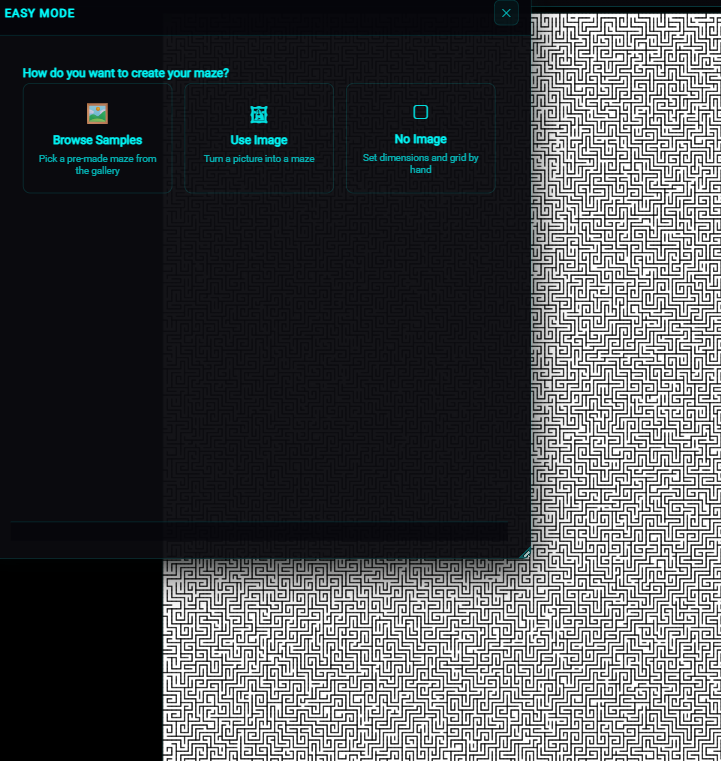
2. Upload your image
Select a file from your device. Once it loads, the image step shows Background, Detail, Cell size (px), Wall thickness, and (when colorized) Pixelate background.
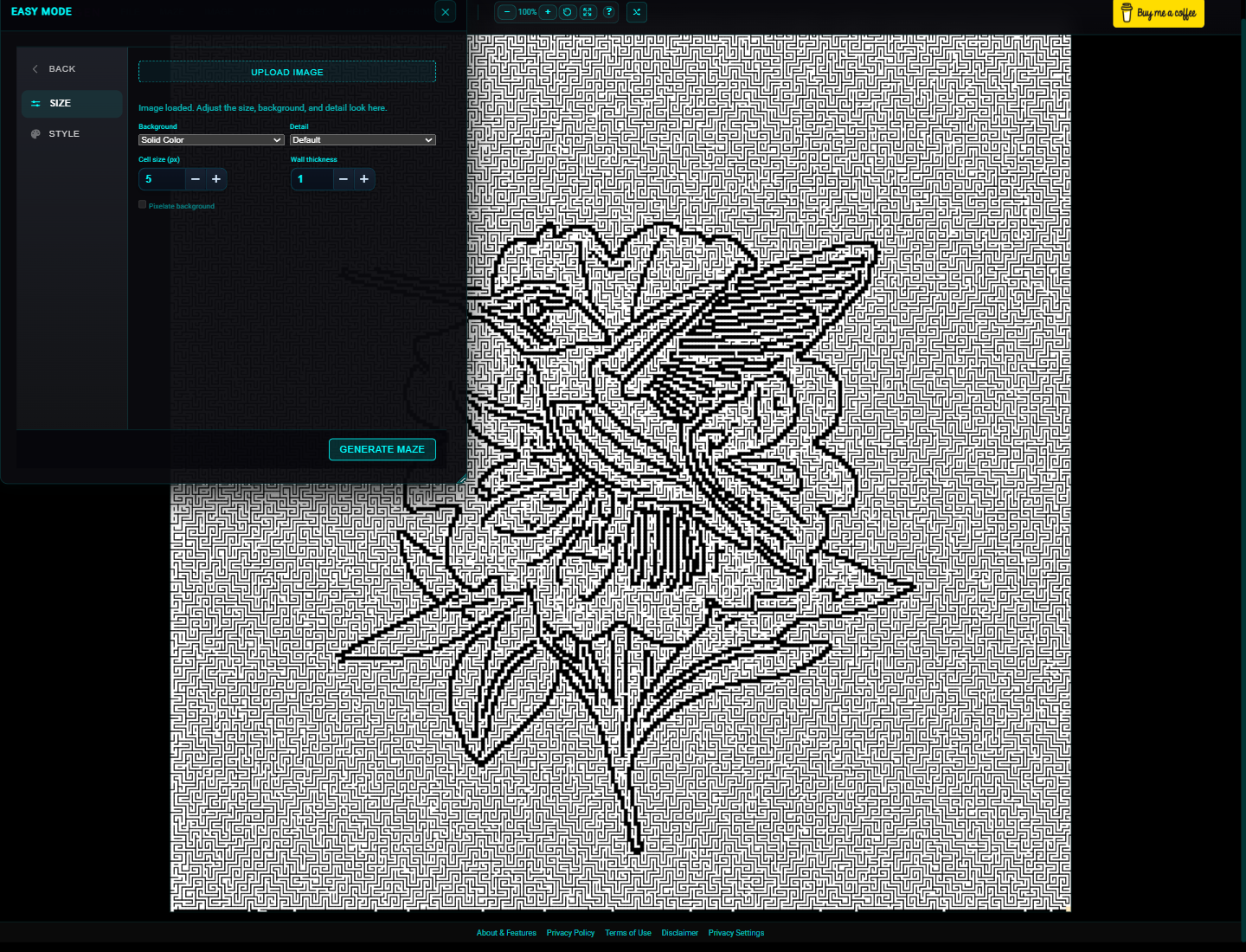
3. Set Background to Colorized
In the Background dropdown, choose Colorized. Your image appears in the maze paths instead of a solid fill. Optionally set Detail to High Detail or reduce Cell size (px) for more visible image detail. Turn on Pixelate background if you want a blockier look in the paths.
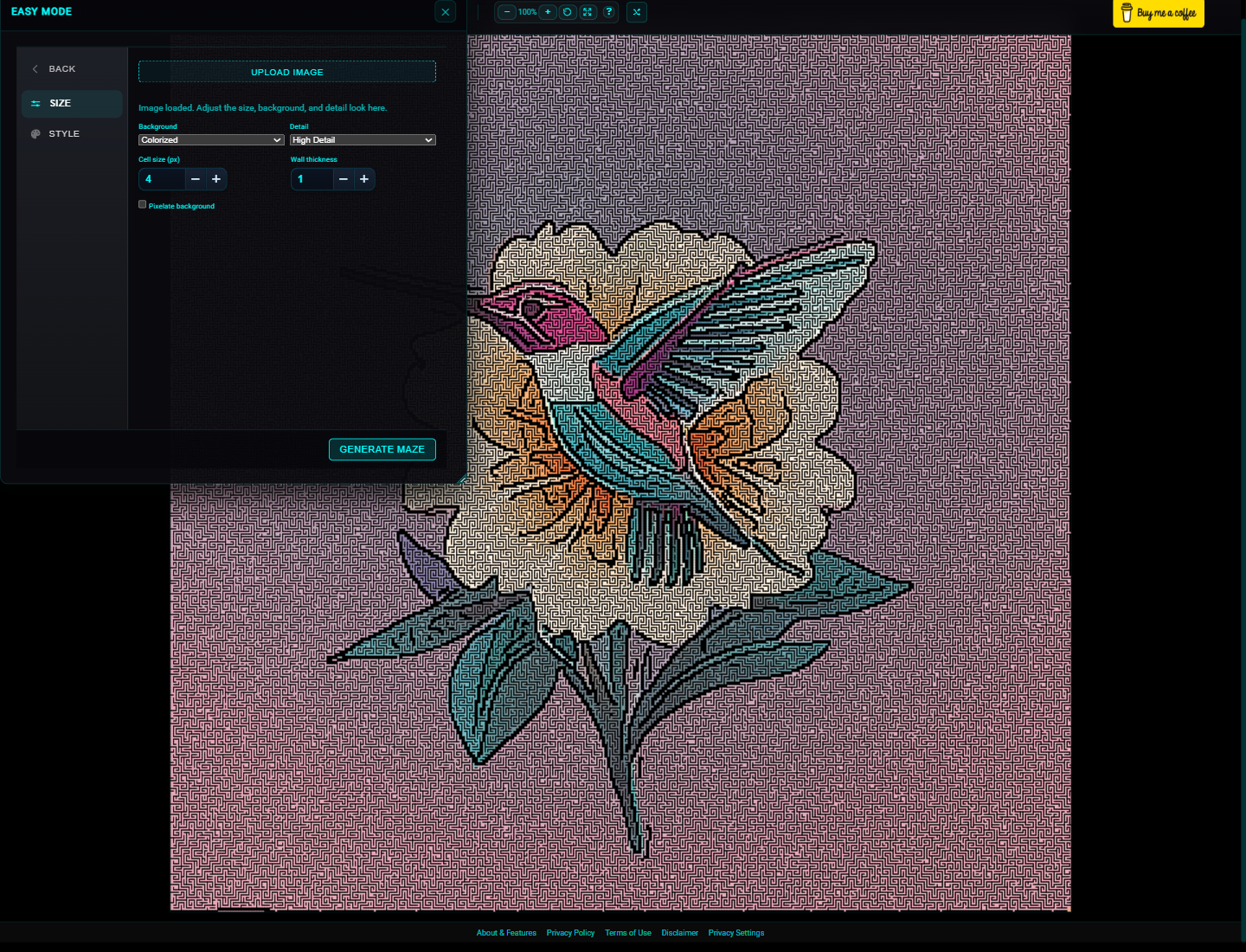
4. Generate and export
Click Generate Maze. Easy Mode closes and the maze appears in the workspace. For wall colors, advanced background presets, filters, or placement, use Maze and Image after generating. Use the zoom controls to inspect, then File → Export Image to save a PNG.
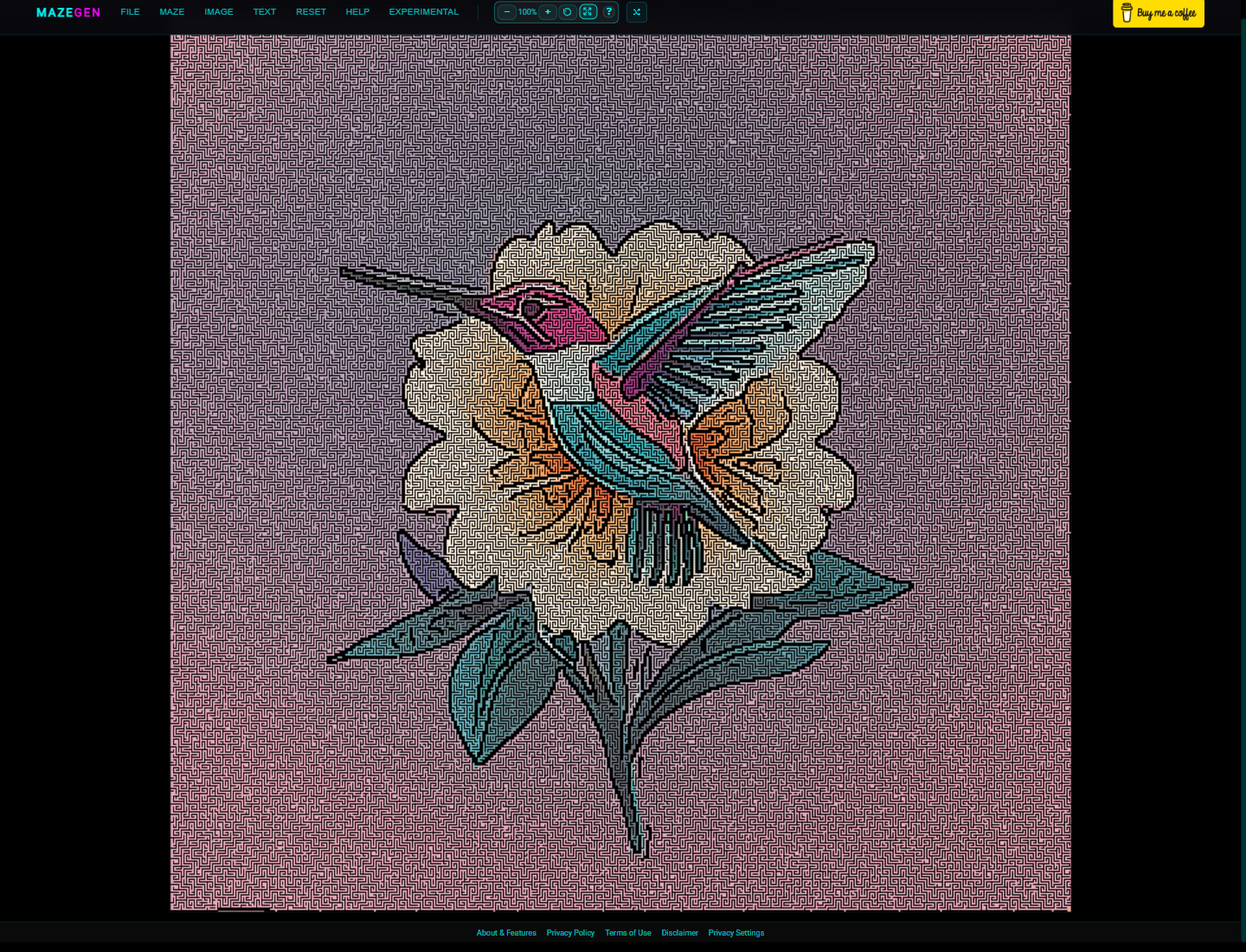
For the full Easy Mode walkthrough (samples, no-image mode, and all options), see the Help → Easy Mode section.